 Website


migrate from wordpress
Migrate from WordPress in 3 Steps: Preview First, Fix Serialized URLs
Use a risk focused WordPress migration checklist: back up, preview the new site, fix serialized URLs, and keep rollback ready.
For most sites, the fastest safe migration is plugin-assisted: one tool exports your files and database together, then imports them on the new host in a single pass. Manual migration is your fallback when the site is huge, runs multisite, or a plugin chokes on the transfer. Either way, the job never changes: back everything up off-site, move the files and database as a matched pair, then cut over DNS only after you’ve verified the copy works.
TL;DR:
- Plugin-assisted migration works well for small sites but can fail with large media libraries or upload limits, requiring manual or host-assisted methods.
- Manual migration provides greater control and is necessary for multisite networks or when plugins timeout during export, involving database and file transfers.
- Testing critical functions, DNS records, and integrations before and after cutover reduces downtime and prevents overlooked errors during the switch.
- Most migration errors stem from incorrect database credentials, broken links, or server misconfigurations, which can often be fixed quickly with targeted troubleshooting.
- Rebuilding a site from scratch can be faster and more reliable than migrating if the current site is outdated, heavily bloated, or built with incompatible, aging plugins.
Table of Contents
- How Do You Migrate from WordPress Step by Step?
- Migrating with a Plugin: Export, Import, Finish
- Manual Migration: Files, Database, and Configuration
- Changing Domains Without Downtime
- Keeping Your SEO Rankings Through the Move
- What Should You Test Before and After DNS Cutover?
- Fixing the Most Common Migration Errors
- Migrating Email Accounts Tied to Your Domain
- Getting the Migrated Site to Run Fast on the New Host
- Reconnecting Third-Party Integrations and APIs
- Your Rollback Plan If Migration Goes Wrong
- What I’ve Learned Watching Migrations Go Sideways
- When Rebuilding Beats Migrating from WordPress
- Sources
How Do You Migrate from WordPress Step by Step?
Every WordPress site migration boils down to three jobs done in order: back up, transfer, and cut over. You pick the method, not the job.
- Plugin-assisted: Best for typical brochure sites, blogs, and small stores. Usually completes within a few hours. Fails on very large media libraries or strict host upload limits.
- Manual (files + database): Best for large sites, multisite networks, or when a plugin hits a wall. Takes several hours. Requires comfort with SFTP, phpMyAdmin, or WP-CLI.
- Host-assisted: Best when you’d rather hand off the technical risk entirely. Many hosts will pull your site over directly, which sidesteps upload caps and timeouts that trip up client-side plugins, according to WP Engine.
Before choosing, check three things: is this a multisite network, does it run WooCommerce with live order data, and how large is the uploads folder? Any “yes” pushes you toward manual or host-assisted.
Migrating with a Plugin: Export, Import, Finish
A migration plugin packages your files and database into one archive and unpacks it on the new host, which is why it’s the default recommendation for most WordPress site migration jobs.
- Update everything first. Update WordPress core, themes, and plugins before you touch the export button. A broken migration is often just an outdated plugin colliding with a newer PHP version.
- Take an off-site backup anyway. Even with a plugin doing the heavy lifting, store a full backup somewhere the old host can’t touch, following the same principle WordPress.org’s own migration documentation lays out.
- Disable caching and security plugins. Aggressive caching or firewall rules can silently block the export or import process.
- Export the full package. Files plus database, not just a content export. Watch the file size; large media libraries can hit upload limits or time out mid-transfer, a common failure mode WP Remote flags for bigger sites.
- Import on the destination, then run domain replacement through a serialized-aware tool if the URL is changing. A plain text find-and-replace corrupts serialized arrays in
wp_postmeta. - Check the preview URL, adjust
wp_config.phpif database credentials differ, then move DNS.
Pro Tip: Run the domain replace as its own step, after import, not during. Doing it live inside the plugin’s import screen makes failures much harder to diagnose.
Manual Migration: Files, Database, and Configuration
Manual migration gives you control a plugin can’t, and it’s the right call when plugin exports keep timing out or a multisite network needs precise handling.
- Back up everything off-site first. Export the database with phpMyAdmin or
wp db exportvia WP-CLI, and archive the fullwp-contentfolder, including hidden files like.htaccess. - Move the files. SFTP or
rsyncboth work; for very large uploads folders, a server-side archive (zip on the source, unzip on the destination) is far faster than transferring thousands of small files individually. - Create the destination database, then import the SQL file. Update
wp-config.phpwith the new database name, username, password, and host. - Run a search-replace. Use WP-CLI’s
search-replacecommand or a serialized-aware plugin to updatesiteurlandhome, plus any hardcoded media URLs in post content. Developer documents this exact sequence, and it’s the step most manual migrations get wrong. - Handle special cases. Multisite networks need the
wp_blogsandwp_sitetables updated alongside the standard search-replace. WooCommerce stores need order and product meta checked for broken serialized data after the swap. Sites with large media sets benefit from moving uploads via rsync before touching the database, so you’re not troubleshooting a stalled transfer and a broken URL structure at the same time.
Changing Domains Without Downtime
Preview the destination site before DNS ever points at it. Edit your local hosts file or use the staging URL most hosts provide, so you’re testing the actual new environment instead of guessing.
- Copy the full DNS zone, not just the A record. MX, TXT, and CDN entries all need to travel with the site, or email and third-party services break silently.
- Lower the TTL on your DNS records a day or two before cutover, which shrinks propagation time when you flip the switch, a step WP Remote recommends for exactly this reason.
- Issue the SSL certificate on the new host right after cutover, then scan for mixed-content warnings from any leftover hardcoded HTTP links.
Keeping Your SEO Rankings Through the Move
Build a complete old-URL-to-new-URL map before you touch redirects. This single spreadsheet is what separates a smooth domain change from a ranking drop that takes months to recover from.
- Implement 301 redirects for every mapped URL, either at the server level or through a redirect plugin, so link equity and search rankings carry over, following the same approach Learn WordPress walks through for domain changes.
- Replace internal URLs with a serialized-aware search-replace tool, never a manual find-and-replace across the database.
- Regenerate your XML sitemap and resubmit it in Google Search Console.
- Track 404 errors, redirect hits, and organic traffic daily for the first two weeks, then weekly through the 90-day mark.
Rushed planning, not technical failure, causes most migration problems. A developer analysis of moving away from WordPress found that data transformation and URL mapping mistakes account for more post-migration damage than any single technical bug. Tools like Babylovegrowth’s WordPress SEO workflow can help you monitor rankings and technical SEO health during that recovery window.
What Should You Test Before and After DNS Cutover?
Test the preview copy first, then re-test the live domain after cutover. Skipping either half is how broken sites go unnoticed for days.
- Before DNS: Load key pages, submit every form, log into wp-admin, run a test transaction if you sell anything, and confirm new uploads save correctly.
- After DNS: Verify the SSL certificate, click through your redirect map, send a test email through each domain-linked account, confirm CDN assets load, and check page speed against the old host’s baseline.
- Monitor for 48 to 72 hours with a rollback ready to trigger if error rates or 404s spike.
Fixing the Most Common Migration Errors
Most migration errors trace back to one of three causes, and each has a fast fix.
- “Error establishing a database connection” almost always means
wp-config.phphas the wrong database name, user, or password, or the database user lacks proper privileges. - Broken images or dead links point to a search-replace that missed serialized data, or uploads folder permissions blocking file access after the transfer.
- 500 errors usually trace to a corrupted
.htaccessfile, a PHP memory limit too low for the new host, or a plugin conflict surfaced by the environment change.
Migrating Email Accounts Tied to Your Domain
Email migration runs on a separate track from your WordPress files, and skipping this step is how businesses lose incoming mail for days without noticing.
Start by cataloging every mailbox tied to the domain, along with their storage size, since that determines how you’ll move the messages. If your new host offers the same email platform (cPanel to cPanel, for instance), most control panels include a built-in email migration tool that copies mailboxes directly. If you’re switching email providers entirely, export each mailbox to a standard format your new provider can import; most webmail clients support this through their account settings.
Set up the mailboxes on the new host or provider first, fully configured, before you touch DNS. Sequence matters here: create the accounts, do a test send and receive, then only change your MX records once new mail is confirmed to work.
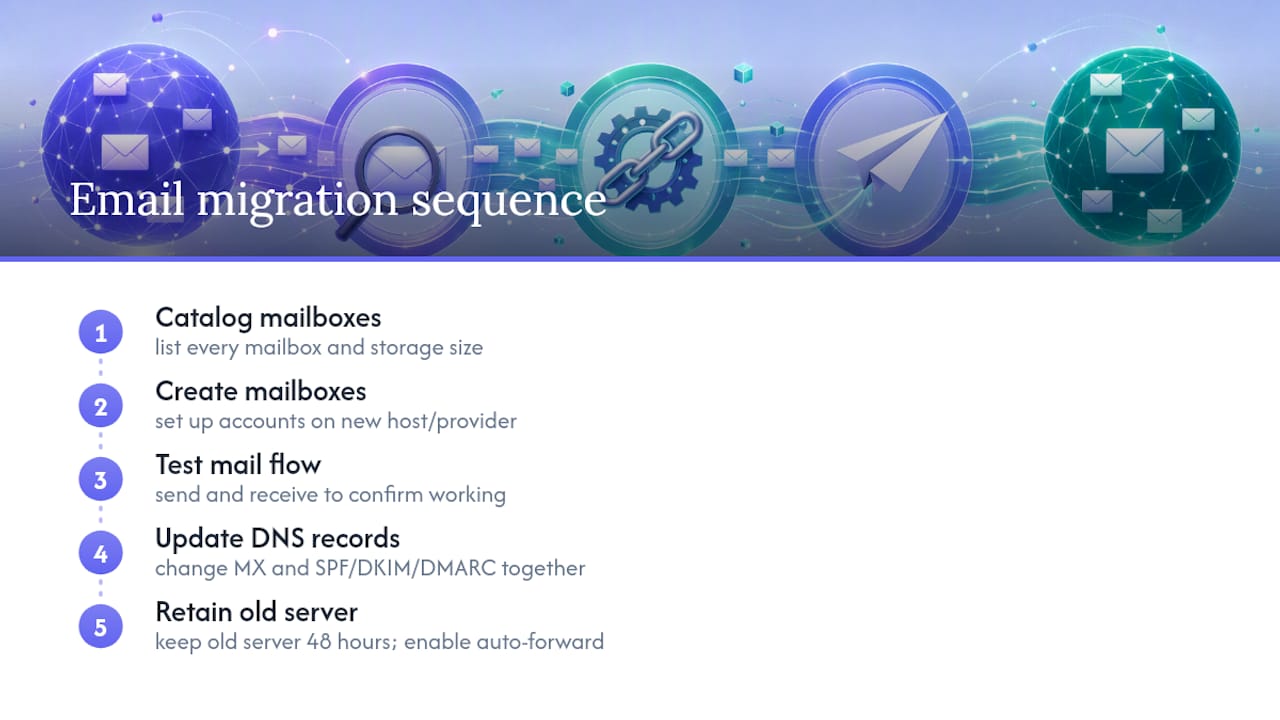
When you do update DNS, change the MX records and any related SPF, DKIM, and DMARC TXT records together, since mismatched authentication records are a common cause of outgoing mail landing in spam after a switch. Keep the old mail server active for at least 48 hours after the MX change. DNS propagation isn’t instant, and some senders will still be routing to the old server during that window.
Pro Tip: Set an auto-forward or hold rule on the old mailbox during the transition so nothing sent to the old server during propagation gets lost.
Getting the Migrated Site to Run Fast on the New Host
A successful transfer that leaves you with a slow site is only half a migration. Performance tuning on the destination host is where a lot of people stop too early.
Start with the PHP version. Confirm the new host runs a current, supported version of PHP rather than whatever the old host happened to have configured; an outdated version is one of the more common silent performance drags after a move. Check your plugin and theme compatibility against that version before you assume everything is fine.
Caching needs to be rebuilt from scratch on the new server, not assumed to carry over. Set up page caching through your host’s built-in system or a caching plugin, and configure object caching if the new environment supports it. A site that felt fast on the old host can feel sluggish on the new one simply because the cache layer never got reconfigured.
Database optimization matters more after a migration than most people expect, since exported and re-imported databases often carry bloat: leftover post revisions, expired transients, and orphaned metadata from old plugins. Run a cleanup pass with a database optimization tool, or manually clear revisions and transients through WP-CLI, before you judge the new host’s speed.
Finally, check your media delivery. If the old site used a CDN, verify it’s still pointed at the right origin, and confirm image compression settings survived the transfer. A media-heavy site that skips this step often loads slower on paper despite sitting on better hardware.
Reconnecting Third-Party Integrations and APIs
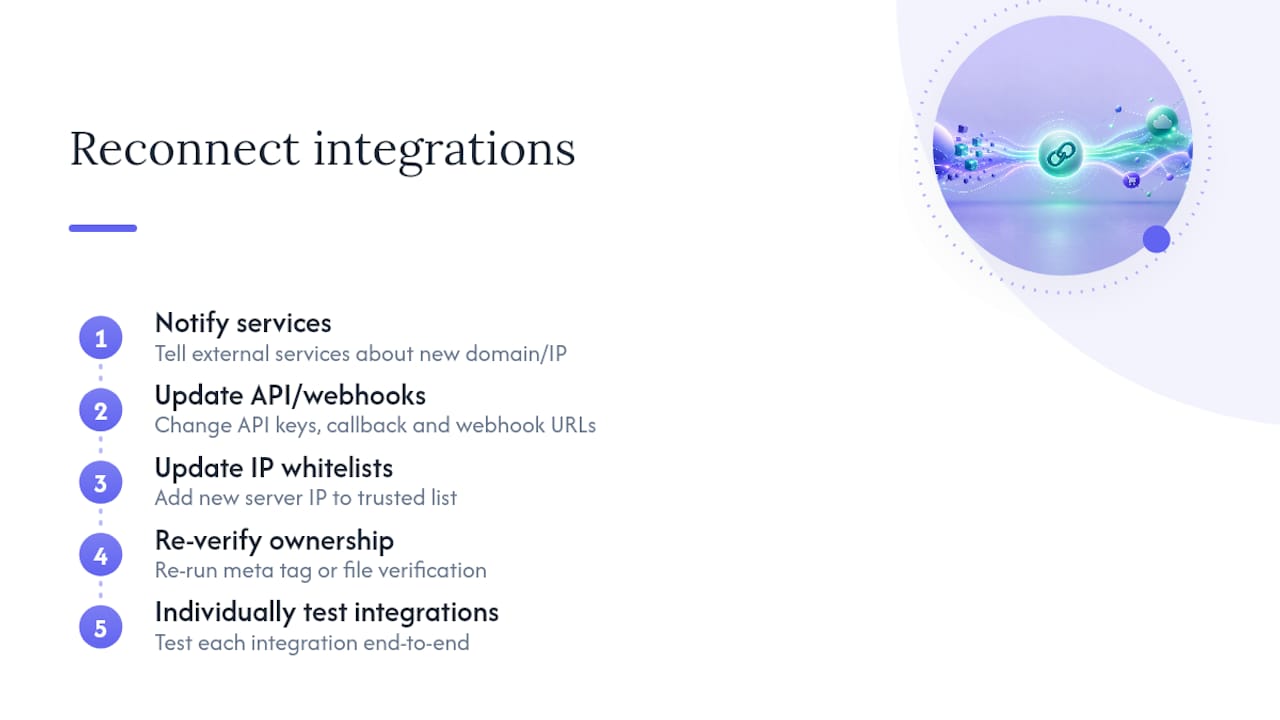
Every external service connected to your WordPress site, payment processors, email marketing tools, analytics, CRMs, likely needs to be told about the move, because most of these integrations authenticate against your specific domain or server IP.
Start with anything using API keys tied to a domain or callback URL. Payment gateways, in particular, often require you to update the webhook or callback URL in their dashboard to match the new domain, or transactions will silently fail even though checkout appears to work. Do this before you send real customers through checkout on the new host.
Review any service that whitelists your server’s IP address for access. Firewalls, SMTP relays, and some CRM integrations block requests from unrecognized IPs by default, so an integration that worked fine for months can go dark the moment your site moves to different hosting.
Re-verify site ownership wherever it’s required. Google Search Console, Google Analytics, and Facebook domain verification often use a meta tag or file-based check that doesn’t automatically transfer with your content. Re-run the verification step so tracking and reporting don’t quietly stop.
Test each integration individually rather than assuming a working homepage means everything behind the scenes is fine. A contact form can load perfectly while its email delivery integration is still pointed at settings that no longer exist.
Your Rollback Plan If Migration Goes Wrong
A migration without a rollback plan is a bet, not a plan. Build the exit before you need it, not after something breaks.
Keep the original site fully intact and untouched until the new one is verified and stable, ideally for at least a week post-cutover. Don’t delete or deactivate the old hosting account the moment DNS changes; that’s the single most common mistake that turns a fixable problem into a permanent one.
Your rollback triggers should be defined in advance: a spike in 500 errors, broken checkout, email delivery failure, or a sustained traffic drop that suggests something search engines can see but you can’t. Decide these thresholds before launch day, when you’re calm, not during an incident.
Reverting DNS is the fastest rollback lever. If you lowered your TTL before cutover, pointing records back at the old host propagates quickly, often within the hour rather than the standard 24 to 48. Keep your original DNS zone file saved exactly as it was before any changes, so reverting is a paste, not a rebuild.
If the database was modified after migration (new orders, new form submissions), you’ll need a plan for reconciling that data back into the old site, or accepting a short gap. This is the part most rollback plans skip, and it’s the part that actually matters if the site does any transactional business. Document it before, not during.
What I’ve Learned Watching Migrations Go Sideways
The migrations that go smoothly are the boring ones. Someone took a full off-site backup, tested everything on a preview URL before touching DNS, and had a rollback plan written down instead of improvised. The failures I keep seeing trace back to skipping exactly one of those three things, usually the backup, because it felt like the safe part to rush.
There’s a point where migrating stops being worth it. If your site is running on a theme from 2016, carrying a decade of plugin bloat, and the “quick migration” has already eaten a weekend, you’re not migrating anymore, you’re archaeology. At that point, rebuilding with something like WebsitePublisher isn’t a fallback. It’s often the faster path to a site that actually works.
When Rebuilding Beats Migrating from WordPress
Sometimes the smarter move isn’t moving your WordPress site at all. It’s leaving it behind. If you’re staring down a decade of plugin bloat, a theme nobody maintains anymore, or custom fields so tangled that search-replace keeps corrupting your data, a rebuild often costs less time than a migration that keeps failing.
This platform gives you a different starting point: describe the site you want in plain language, and it builds it with many integrations already wired up, including payments, email, and lead capture, without needing to touch a database or a config file. Instead of fighting serialized data and DNS timing, you get a working site with reusable components you can edit visually in your browser, no separate AI session required to make a change later. That matters most for the sites migration keeps breaking: heavy WooCommerce stores, multisite networks, or anything held together by five plugins that have stopped talking to each other years ago.
If your current site fits that description, compare the effort side by side. Start with the AI website builder and see how fast a rebuild moves compared to another weekend spent debugging wp-config.php.
Sources
- Developer
- The best way to migrate a WordPress site — WP Engine
- How to migrate WordPress site safely — WP Remote
- Migrating your site: changing to a new host and domain — Learn WordPress
- Migrate WordPress to Laravel: The complete developer guide — Richard Joseph Porter
Recommended
- React on WebsitePublisher — Deploy React Landing Pages by Conversation
- Build Websites with Mistral — Mistral AI Website Builder
- Build Websites with Claude — Claude AI Website Builder
Build your site the same way
Describe what you want. Your AI builds and publishes it — with the full stack behind it: data, auth, forms, payments, integrations and hosting.
See how it works →