 Website


build website with chatgpt
5 Prompts to Build a ChatGPT Website, Plus a Safer Deploy Path
Five copy paste prompts to launch a ChatGPT site fast, plus a save before deploy checklist and a clear guide to when a managed AI builder makes sense.

Yes, you can build a real, working website with ChatGPT, and there are two ways to do it. Use ChatGPT Sites when you want a hosted site live in minutes with no separate hosting setup, or ask ChatGPT to generate code when you need full control and plan to deploy it yourself. Beginners should start with Sites. Coders should generate code and self-host. Neither route is built for large-scale apps or live-data integrations without extra tooling.
TL;DR:
- ChatGPT Sites offers quick, hosted website creation suitable for simple landing pages, portfolios, or internal dashboards with minimal traffic and no backend complexity.
- Generating code with ChatGPT provides full control for developers requiring custom frameworks, larger scale, or integrations not supported by Sites, but demands manual review and self-hosting.
- Neither approach supports real-time external data feeds, high concurrency, or complex authentication, which require additional engineering beyond prompt capabilities.
- Proper project planning involves defining traffic expectations, content management needs, user features, and storage requirements to choose the most effective building path.
- Post-deployment testing should include live browser validation, functionality checks, and connection of custom domains with SSL to ensure site readiness before public launch.
Table of Contents
- How to Build a Website with ChatGPT: What It Can and Can’t Do
- When Should You Use ChatGPT Sites vs. a Traditional Builder vs. Generated Code?
- Step-by-Step: Build a Simple Site with ChatGPT Sites
- Prompt Templates You Can Copy and Adapt Right Now
- Testing, Publishing, and Domain Basics Before You Go Live
- Advanced Tips: Versioning and Site-Shape Decisions That Save You Rework
- Handling User Data Privacy When ChatGPT Powers Your Website
- Getting AI-Generated Content to Actually Rank
- Where AI-Built Sites Have Real Limits
- When an AI-First Build Is Actually the Right Call
- A Faster Path When You Want an AI Builder with a Real Backend
- Docs and Reports Worth Reading Next
- Sources
How to Build a Website with ChatGPT: What It Can and Can’t Do
ChatGPT gives you two distinct paths to a live website, and confusing them is the fastest way to waste an afternoon.
The first path is ChatGPT Sites, a feature that turns a prompt into a hosted, previewable site with its own production URL. You describe what you want, ChatGPT builds it inside your workspace, and you can preview, adjust, and deploy without ever touching a hosting dashboard. The official ChatGPT Sites documentation frames this as the fastest way to go from an idea to a working link, and hands-on testing backs that up. Tom’s Guide built a working site from a single prompt using a handful of uploaded documents and had a live link within minutes.
The second path is Codex, ChatGPT’s code-generation capability. Instead of a hosted site, you get raw HTML, CSS, and JavaScript that you copy, review, and deploy on a host of your choosing. This is the route for developers who want a specific framework, a custom backend, or version control outside the ChatGPT workspace. The tradeoff is real: generated code needs human review before it goes live, and ChatGPT itself won’t register a domain or configure a server for you.
Here’s where both paths stop, regardless of how good your prompt is:
- Live external data: Sites and Codex output can display data, but neither pulls a continuous feed from a third-party API without manual setup.
- Heavy concurrency: A landing page or internal tool handles normal traffic fine; a site expecting thousands of simultaneous checkout transactions is a different animal.
- Complex backends: Multi-step authentication flows, role-based permissions, or custom payment logic usually need engineering beyond a prompt.
- Workspace and plan limits: Sites projects operate within your ChatGPT plan’s storage and usage limits, which matters once a project grows.
None of this makes ChatGPT a weak tool. It makes it a specific one. Know the boundary before you start, and you’ll pick the right path on the first try instead of the third.
When Should You Use ChatGPT Sites vs. a Traditional Builder vs. Generated Code?
The right choice depends less on how ambitious your idea is and more on how much backend complexity it actually needs.
ChatGPT Sites fits these projects well:
- Landing pages for a product, event, or campaign
- Pricing or eligibility calculators with straightforward logic
- Internal dashboards for a small team that don’t need public scale
- Single-file apps: a tool that does one job, like a form that generates a document
Generating code and self-hosting fits these instead:
- A custom backend with business logic that doesn’t map to Sites’ supported shapes
- Anything expecting real scale, meaning thousands of daily active visitors with dynamic content
- Integrations Sites doesn’t support natively: a specific CRM, a niche payment processor, a legacy system
A conventional builder or managed platform makes sense when:
- You want ongoing visual editing without re-prompting an AI session every time
- You need 104-plus prebuilt integrations (email, payments, lead capture) without wiring each one by hand
- You’re running multiple client sites and need consistent, reusable components across projects
Run through this checklist before you commit to a route: How much traffic do you actually expect? Does the site need user accounts or authentication? Will visitors upload files, and if so, how much storage do you need? How often will the content change after launch? A landing page you’ll update twice a year is a different project than a dashboard your team touches daily. Answer those four questions honestly, and the right tool usually becomes obvious.
Step-by-Step: Build a Simple Site with ChatGPT Sites
This is the exact workflow to go from a blank prompt to a live URL, and it works whether you’re building a portfolio, a calculator, or a request form.
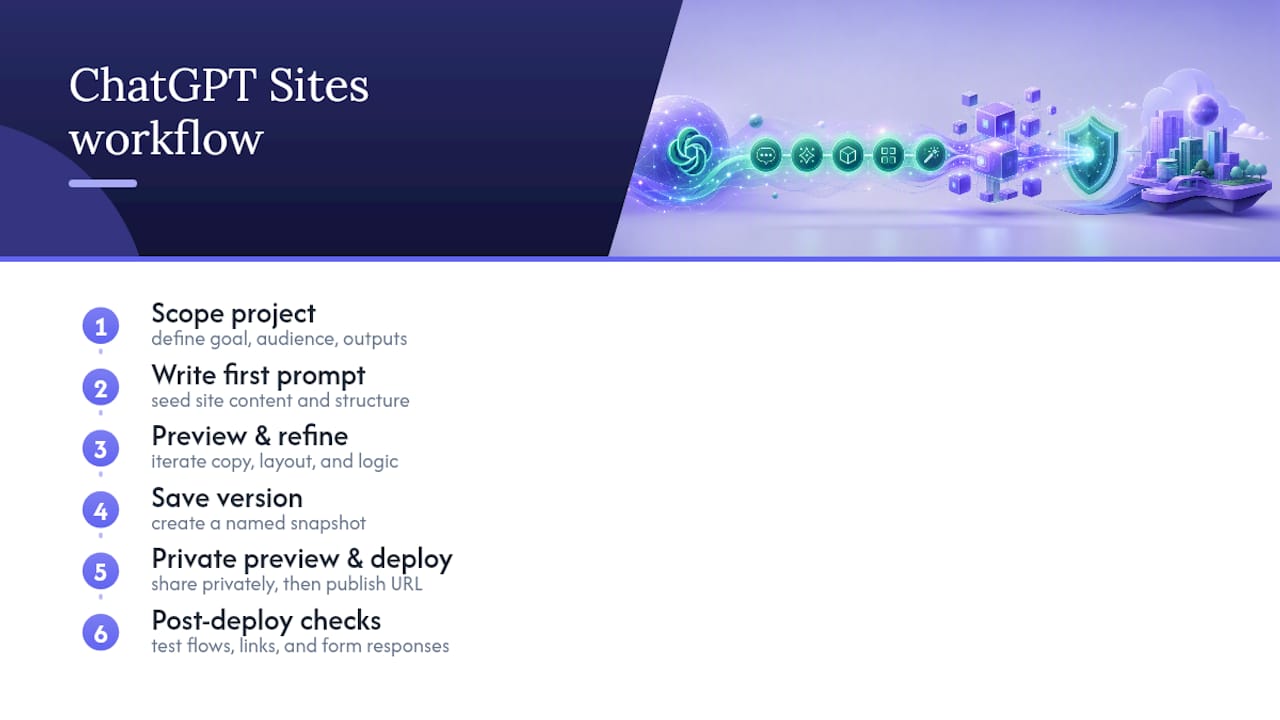
1. Scope the project before you write a single prompt
Decide four things on paper first: who the site is for, what one core task it needs to accomplish, how many pages it needs, and what shape the data takes. That last point matters more than people expect. If you’re storing structured records like customer names or order details, you’ll want D1, ChatGPT Sites’ relational database option. If you’re handling media like photos, PDFs, or video, you want R2 object storage instead. Deciding this now, according to ChatGPT’s own Sites documentation, prevents a costly backend rebuild later.
2. Open a Sites session and write your first prompt
Start a ChatGPT conversation and reference Sites directly, or use the Sites option in your workspace. If you have existing brand assets, a logo, a color palette, or reference copy, upload the files now instead of describing them in text. Then write a three-part brief: what the visitor should be able to do, how they’ll interact with the page, and what it should look like. Independent build guides consistently find this three-part structure outperforms an open-ended “build me a website” request, because it gives the model concrete guardrails instead of forcing it to guess.
A sample first prompt might read: “Build a one-page site for a freelance photographer. Visitors should see a hero image, a scrollable portfolio grid, and a contact form that emails me submissions. Use a dark background with warm accent colors and a serif heading font.”
3. Review the preview and refine in plain English
ChatGPT Sites generates a preview inside your workspace before anything goes live. Look at it critically: does the layout match what you asked for? Is the copy on brand? Does the contact form actually appear where you expect it? Whatever’s wrong, say so directly. “Move the contact form above the portfolio grid” works better than a vague “make it better.” Iteration is the entire point of this workflow, and the insight from Sites documentation is that scoping the outcome, interaction, and visual identity up front produces stronger first drafts than starting from a blank slate and hoping.
4. Save a version before you touch deploy
This step gets skipped constantly, and it’s the one that causes real headaches. Every deployment in Sites maps to a production URL, so OpenAI’s help documentation on managing Sites recommends saving a version and previewing it privately before you deploy. Saving first means you always have a working checkpoint to roll back to if a later change breaks something. Treat this the same way you’d treat committing code before a risky edit.
5. Preview privately, then deploy
Once you’re satisfied with the saved version, preview it one more time using the private preview link, not just the in-workspace view. In-app previews can behave differently from what a real visitor sees in an actual browser. When it checks out, deploy. The production URL is now live and shareable.
6. Run post-deploy checks immediately
Don’t consider the job done the moment the URL goes live. Open the deployed link in Chrome specifically, since hands-on testing and OpenAI’s own guidance both flag that in-app previews can diverge from live browser behavior. Submit any forms yourself to confirm they actually send data. If you’re using file storage, upload a test file and confirm it appears where expected. Check your sharing and access settings so the site is visible to the audience you intend, whether that’s public or restricted to a workspace.
Pro Tip: Keep a plain-text log of every prompt that produced a change you liked. When you need to rebuild a similar page for a different client or project, that log becomes a reusable prompt library instead of a memory exercise.
Prompt Templates You Can Copy and Adapt Right Now
A well-structured prompt is the single biggest lever you have over output quality. These five templates cover the most common first projects, and each one is built around the audience, interaction, and appearance formula that consistently produces stronger first drafts.
For a landing page or portfolio: “Build a one-page site for [type of business/person]. The visitor’s goal is to [core action, e.g., book a consultation, view work samples, sign up for a newsletter]. Include a hero section, a [gallery/services/testimonials] section, and a contact form that sends submissions to my email. Visual style: [color palette, font style, mood].”
For a pricing or eligibility calculator: “Build a single-page calculator. Inputs are [list exact fields, e.g., number of employees, monthly revenue, plan tier]. The calculation rule is [describe the exact math or logic]. Display the result as [a dollar figure, a percentage, a recommended tier]. Keep the layout simple with the inputs on the left and the result updating live on the right.”
For an internal request or onboarding form: “Build a form for internal use where employees submit [type of request]. Required fields are [list them]. Submissions should be stored so I can review them later, using structured storage since this is record-based data, not media files. Add a confirmation message after submission.”
For a document or media-heavy hub: “Build a page where visitors can browse and download [type of files, e.g., resource guides, product photos]. Since this involves media storage, use object storage for the files themselves. Organize them by [category] with a simple filter or search bar.”
Three additions sharpen almost any prompt: name your audience specifically (“small business owners,” not “everyone”), list required fields exactly rather than describing them loosely, and state whether you’re storing structured records or media files, since that decision determines whether the build uses D1 or R2 underneath. The clearer you are about storage needs, the less likely you are to hit a rebuild later.
Testing, Publishing, and Domain Basics Before You Go Live
A site that looks finished in preview can still fail in the real world if you skip a few unglamorous checks.
Follow this sequence every time you’re ready to publish:
- Save a version first. Never deploy directly from an unsaved draft.
- Preview using the actual preview link, not just the workspace view.
- Open the preview in Chrome to catch any rendering differences before real visitors do.
- Test every interactive element: submit forms, upload a test file, click every navigation link.
- Deploy to production only after all four checks pass.
Beyond that sequence, a few structural items are easy to overlook:
- Confirm file uploads and storage are actually working, not just accepting a file but retrieving it correctly (R2 for media).
- If your site tracks structured records like signups or orders, verify the database-backed feature (D1) is saving and returning accurate data.
- Connect a custom domain if you’re moving beyond the default hosted URL, and confirm SSL is active so the site loads securely rather than throwing a browser warning.
- Add an analytics snippet before launch, not after, so you’re not missing your first week of real traffic data.
- Keep an eye on your workspace’s plan limits for storage and usage, since a site that grows past a free or entry tier can hit caps without warning.
Advanced Tips: Versioning and Site-Shape Decisions That Save You Rework
Once you’ve published a few sites, the habits that separate a smooth workflow from a frustrating one become obvious.
Sites projects store linkage metadata connecting your local source to hosting, often in a file like .openai/hosting.json, according to ChatGPT’s Sites documentation. Understanding that this file exists helps you make sense of version history and re-deployments instead of treating each deploy as a mystery. Save versions consistently, especially before any change that touches layout or data structure, so a bad edit never takes down your live production URL.
The other habit worth building early: decide your site shape before you scale content, not after. D1 (relational storage) suits structured records like signups, orders, or inventory. R2 (object storage) suits media like images, video, or PDFs. Getting this wrong isn’t fatal, but fixing it later means a backend refactor you could have avoided with one decision made on day one.
A few other things worth knowing:
- Keep a naming convention for saved versions so you can find a specific checkpoint months later.
- Document integration choices (email provider, payment processor) somewhere outside the chat session, since that context doesn’t always persist.
- If you’re managing multiple client sites, a platform built around reusable components saves real time over rebuilding similar pages from scratch each time.
Pro Tip: Before you add a new feature to a live site, save a version first, then test the change in preview. This one habit prevents almost every “why did my site break” panic.
That last point about reusable components is exactly where a platform like WebsitePublisher supports rapid, repeatable deployments alongside a real backend and 104-plus built-in integrations, without you rebuilding your data structure every time.
Handling User Data Privacy When ChatGPT Powers Your Website
Any site collecting visitor information through a ChatGPT-built form or chatbot needs a real answer to where that data goes and who can see it.
Start with the basics: if your site stores names, emails, or any personal information, that data needs to sit in a storage system with clear access controls, not an open file anyone with the link could stumble into. If you’re using D1 for structured records, confirm who on your team has access to that database and whether the data needs to be encrypted at rest for your use case.

If your site includes a ChatGPT-based chatbot or FAQ widget, remember that conversations with it may pass through a third-party AI service, which raises different questions than a static contact form. Be upfront with visitors: a short privacy notice near any AI chat feature, stating that messages are processed by an AI system, is a reasonable baseline. If you operate in a regulated industry, healthcare, finance, legal services, treat any AI-collected data with the same compliance standard you’d apply to a traditional form, because the collection method doesn’t change the underlying legal obligation.
Avoid collecting more than you need. A request form built from a quick prompt can accidentally ask for more personal detail than the task requires, simply because it seemed thorough at the time. Review every field against a simple test: would you need this information if a human were processing the request manually? If not, cut it.
Getting AI-Generated Content to Actually Rank
A site built fast doesn’t have to read like it was built fast, and search visibility depends on more than how quickly the page went live.
Generated copy tends to run generic unless you push back on it. Ask ChatGPT to write for a specific reader with a specific problem, not a general audience, and to include real specifics rather than filler phrases. Thin, repetitive AI copy across multiple pages is one of the fastest ways to underperform in search results, so vary your headings and avoid pasting the same paragraph structure across every page of a small site.
Technical performance matters just as much as the words on the page. Follow standard responsive layout practices from MDN’s CSS grid documentation so your site renders cleanly on mobile, since a layout that only works on desktop will lose both visitors and search ranking. Compress images before upload rather than after, since a media-heavy portfolio page with unoptimized photos loads slowly and search engines penalize that.
Basic on-page structure still applies regardless of who or what wrote the copy: one clear heading per page, descriptive page titles, and alt text on images. None of that disappears just because a prompt generated the first draft. Set up analytics before launch so you can see which pages are actually getting found, and revisit thin pages after a few weeks with real traffic data in hand rather than guessing at what needs improvement.
Where AI-Built Sites Have Real Limits
ChatGPT is genuinely good at producing a working site fast, but that speed comes with tradeoffs worth naming plainly.
Generated content can be confidently wrong. A calculator built from a prompt might compute correctly for the examples you tested but fail on an edge case you didn’t think to check, so review any logic-heavy feature, pricing rules, eligibility calculations, form validation, with real test cases before you trust it with actual visitors.
There’s also an authorship question worth taking seriously. If your site publishes informational content, a blog, guides, product descriptions, readers generally deserve to know when they’re reading AI-assisted content, especially in any topic touching health, finance, or legal advice. This isn’t just an ethical nicety; it affects trust, and trust affects whether people convert on your site at all.
Bias and inaccuracy can creep into generated copy without an obvious tell. If a page makes a factual claim, a statistic, a legal statement, a health claim, verify it against a real source before publishing rather than assuming the model got it right. And accessibility often gets skipped entirely in prompt-generated sites unless you specifically ask for it: alt text, proper heading hierarchy, and color contrast that works for visitors with low vision don’t happen automatically just because the layout looks clean in preview.
None of this means AI-generated content is unreliable by default. It means the review step isn’t optional, no matter how polished the first draft looks.
When an AI-First Build Is Actually the Right Call
AI-built sites earn their reputation in a specific window: fast launches, prototypes, and internal tools where speed matters more than architectural depth. If you need a landing page live before a campaign starts next week, or an internal dashboard your team will use for three months before requirements change again, ChatGPT Sites or generated code is often the faster, cheaper path to a working result.
Where this approach runs out of road is engineering-heavy, large-scale work. A platform expecting real concurrent users, custom authentication flows, or integrations with half a dozen external systems needs more architectural planning than a prompt can supply, and pretending otherwise sets you up for a rebuild later rather than a launch now.
The honest framing, based on how hands-on reports describe the experience, is that the creative part of building a site has gotten dramatically easier. The execution part, hosting, data, authentication, hasn’t disappeared. It’s just been compressed into fewer, more consequential decisions you make earlier in the process. Get those decisions right on day one, and the rest of the build genuinely moves fast.
A Faster Path When You Want an AI Builder with a Real Backend
If you’ve read this far, you already know the tradeoff: ChatGPT Sites gets you live fast but stays inside its own workspace limits, and generated code gives you control but leaves hosting, integrations, and ongoing edits on your plate. WebsitePublisher closes that gap by letting you describe your site in plain language while it handles the backend, over 104 built-in integrations for payments, email, and lead capture, plus reusable components you can update visually in your browser without reopening an AI session every time.
That last part matters more than it sounds. A site built from a single prompt is easy to launch and often awkward to maintain, since every tweak means going back into the same conversation and hoping the context holds. Some AI website builders keep your content and design editable directly, so a pricing change or a new portfolio piece can take minutes, not a fresh prompt session. It also works across multiple AI engines, including Claude and Mistral, so you’re not locked into one model’s quirks if your needs shift.
If you’re a freelancer, small business owner, or agency that needs to launch this week and keep editing next month, check the pricing plans and start building your first project today.
Docs and Reports Worth Reading Next
The ChatGPT Sites documentation is the primary reference for site shapes, save-and-deploy steps, and workspace limits, and it’s worth bookmarking before your first real build.
Tom’s Guide’s hands-on build report gives a grounded sense of what a real first build feels like, warts included, from someone who wasn’t paid to make it look easy.
For anyone writing custom code, MDN’s CSS layout and grid reference remains the standard for responsive design fundamentals that AI-generated code should still follow.
Sources
- Sites – ChatGPT | ChatGPT Learn
- Creating and managing ChatGPT Sites
- I built a website without leaving ChatGPT — and it only took one prompt | Tom’s Guide
- How to Build a Website with ChatGPT | Network Solutions
- How to Build a Website with ChatGPT Sites | Will Francis
Recommended
- Build Websites with ChatGPT
- React on WebsitePublisher — Deploy React Landing Pages by Conversation
- Build Websites with Mistral
Build your site the same way
Describe what you want. Your AI builds and publishes it — with the full stack behind it: data, auth, forms, payments, integrations and hosting.
See how it works →