 Website


browser based website editing
Stop Losing Edits: Browser Based Website Editing for Small Teams
Learn how small teams and freelancers pick the right browser based website editing method, use drafts and role-based access, and publish changes safely.
For a quick visual mock, use designMode or DevTools. For safe, persisted changes that survive a refresh, use a platform with a draft and publish workflow, such as WebsitePublisher.ai. The choice comes down to one question: does this edit need to disappear when you close the tab, or does it need to go live? Local tools like the DOM inspector, a bookmarklet, or contentEditable handle the first job. A browser-based editor with role-based access and a publish path handles the second.
TL;DR:
- Quick browser edits with designMode, bookmarklets, or DevTools are only temporary and vanish after a page refresh, making them unsuitable for permanent changes.
- Persistent editing tools communicate with a server or CMS, allowing changes to be saved and survive page reloads, but setup varies from simple exports to complex integrations.
- Use staging or draft workflows before publishing live changes to prevent accidental deployment, and always verify backups, permissions, and testing steps first.
- Role-based access and server-side review processes are essential for safety, especially on live sites, to prevent unauthorized changes and ensure proper quality control.
- WebsitePublisher.ai provides a visual, browser-based editor with a draft and publish process suited for non-technical users, freelancers, and teams managing multiple sites safely and efficiently.
Table of Contents
- What Is Browser Based Website Editing, Exactly?
- How Do I Make Quick, Temporary Edits in a Browser?
- What’s the Difference Between Local Edits and Editors That Persist Changes?
- How Do I Choose the Right Browser Editing Method?
- What Keeps Browser-Based Editing Safe on a Live Site?
- How Do You Perform a Safe Browser Edit From Start to Finish?
- Where Does WebsitePublisher.ai Fit Into This Workflow?
- How Do Teams Collaborate on Live Edits in Real Time?
- Our Take: Match the Tool to the Job, Not the Other Way Around
- Ready to Edit Your Site Without the Guesswork?
- Sources
- FAQ
What Is Browser Based Website Editing, Exactly?
Browser based website editing means changing a page’s text, images, or layout directly from your browser window, without opening a code editor or uploading files through FTP. Some methods only preview a change. Others actually save it. That distinction runs through everything in this guide.
The Document Object Model is what makes any of this possible. It’s the browser’s live, structured version of the page you’re looking at. Every in-browser editing tool, from a simple bookmarklet to a full platform editor, works by reading and rewriting the DOM. Understanding that one fact clears up a lot of confusion about why some edits vanish and others don’t.
Three practical approaches exist for editing content in a browser: temporary local edits (fast, disposable), DevTools inspection (precise, still disposable), and persisted editors that write changes back to a server (slower to set up, permanent). Each one solves a different problem, and picking the wrong one for the job is where most editing headaches start.
How Do I Make Quick, Temporary Edits in a Browser?
Three techniques let you edit a live page’s appearance in seconds, with zero installation:
- designMode: Open the browser console (F12, then the Console tab), type
document.designMode = "on", and press Enter. The entire page becomes editable like a text document. Click any text and start typing. - Bookmarklet: A small piece of JavaScript saved as a browser bookmark. Clicking it runs a script, often one that toggles
contentEditableon the page or highlights editable regions, without touching the console. - DevTools inline editing: Right-click any element, choose “Inspect,” then double-click the text or a CSS property in the Elements panel to change it on the spot.
All three share one limitation worth repeating: they change the DOM in your browser tab only. Refresh the page, and it’s gone. That’s not a bug. As one long-running Stack Overflow discussion on live editing versus persistence explains, DOM edits made this way never touch the server, so there’s nothing for anyone else to see.
That makes these methods ideal for rapid client mockups, testing a headline before you commit to it, or grabbing a clean screenshot for a mood board. They’re wrong for anything you actually need to keep.
What’s the Difference Between Local Edits and Editors That Persist Changes?
A real in-browser editor, the kind that survives a refresh, needs somewhere to send your changes. That’s the entire difference between a toy and a tool. Here’s how the common patterns work:
- Local download: The editor lets you edit visually, then exports an updated HTML file you upload manually. Simple, but you’re back to manual file management.
- CMS bridge: The editor talks to your content management system’s API in the background, so text and image edits save directly into existing content fields. Common with a headless setup like a Contentful integration.
- GitHub push: For sites built from code repositories, the editor commits your change directly to a branch, sometimes triggering a rebuild automatically.
- Platform script: A single script tag added to your site gives a hosted platform permission to write changes server-side whenever you save.
Installation follows a similar range: a one-time bookmarklet, a single line of script in your site’s header, a browser extension, or a fully hosted editor you log into. Distribution formats vary widely. Even a basic mobile inspection app shows how differently these tools can be packaged, though capability and persistence differ sharply between them.
Compatibility has real limits. Strict Content Security Policy rules can block injected scripts outright. Single-page apps that render content dynamically sometimes confuse simple DOM editors. Image uploads often need their own dedicated flow rather than a drag-and-drop. The trade-off is consistent: faster setup usually means less permanence and less control over what gets saved where.
How Do I Choose the Right Browser Editing Method?
Match the method to what the edit actually needs to survive. If it only needs to survive the next five minutes, in a screenshot or a client call, use designMode or DevTools. If it needs to survive a deploy, a team review, or next quarter, you need a platform with staging and publish controls.
Run through this before touching a live URL:
- Does this change need to be permanent, or am I just testing an idea?
- Do I have the technical access to push a commit, or do I need someone else to approve it?
- Is the site built on a CMS, a static generator, or custom code, and does that change which tools even work?
- Who else needs to see this before it goes live?
The safest rubric is mock, then staged draft, then publish. Skipping the staging step is how a “quick fix” turns into a broken homepage.
Pro Tip: Before editing any live site, ask the owner three questions: Is there a recent backup? Is there an audit trail of who changed what? Can I test this on a staging URL first? If the answer to any of those is no, stop and fix that gap before you touch the page.
Red flags that should stop you cold: no backup strategy, no record of who made which edit, or an editor with no login or role separation at all. Any of those means one bad click can take a live site down with no way back.
What Keeps Browser-Based Editing Safe on a Live Site?
Safety in browser editing comes down to three controls working together: who can edit, where drafts live before they go public, and how a change actually reaches the server.
Role-based access control is the first line of defense. Editors should only see the editing interface if they’re logged in with the right permissions, and a practitioner guide on RBAC in real-time collaborative apps makes the case for placing that access check as close to the editing layer as possible, not just at the login screen. Otherwise an authenticated but unauthorized user could still push a change they shouldn’t.
Draft and staging patterns solve the second problem. A draft version of a page gets reviewed, sometimes by a second person, before anyone promotes it to the live site. Well-built editors enforce a server-side check on that promotion step too, so a client-side script alone can’t push content straight to production.
Our team’s baseline checklist for any team adopting browser-based editing:
- Confirm backups run automatically, not manually
- Use a test account with limited permissions to verify the editor before granting full access
- Build in a QA step between draft and publish, even a five-minute one
- Verify authentication happens server-side, not just in the browser
How Do You Perform a Safe Browser Edit From Start to Finish?
Follow this order every time, whether the change is a typo fix or a full section rewrite:
- Before you start: Confirm a recent backup exists, verify you have editing permissions, and pick a staging URL if one is available.
- Make the edit: Use designMode or DevTools for a visual preview, or a platform editor if the change needs to persist. Do a fast visual QA pass immediately after.
- Save and publish: Export the HTML, push through GitHub, or hit publish in your platform’s editor. Reload the live URL afterward to confirm the change actually landed.
- Roll back if needed: Know how to revert before you need to. Note what changed and when, even in a simple shared doc.
Pro Tip: Keep a running log of live-site edits, even a one-line entry per change. When something breaks three weeks later, that log is the fastest way to find out what happened.
This same backup, edit, QA, publish, verify sequence is what experienced developers fall back on for exactly the reason described in that Stack Overflow thread on persisting live edits: skipping a step is how small edits turn into outages.
Where Does WebsitePublisher.ai Fit Into This Workflow?
WebsitePublisher.ai gives you a visual browser editor built into the platform, so content and design changes happen in the same browser tab where you’re already looking at your site. Changes go through a draft state before anything goes live, and built-in integrations cover common needs like payments, email capture, and lead forms without a separate setup step.
We built it for the people who feel this workflow gap most directly: freelancers juggling several client sites, small business owners without a developer on call, and agencies that need to turn edits around fast without breaking anything.
To be direct about scope: WebsitePublisher.ai is built for content and design changes within its own platform, not as a universal bolt-on editor for any site built elsewhere. If your site lives outside the platform, the CMS bridge and script-based approaches described earlier are the more relevant path.
How Do Teams Collaborate on Live Edits in Real Time?
Editing a site is rarely a one-person job for long. Once a second reviewer, a copywriter, or a client enters the picture, the editor needs to handle more than just saving text. It needs to track who changed what, and when, without anyone stepping on someone else’s work.
Real-time change tracking in modern browser editors relies on watching the DOM for changes as they happen, rather than checking for differences after the fact. The MutationObserver API is the standard mechanism behind this: it lets an editor detect edits the instant they occur and react immediately, whether that means updating a visual diff, triggering an auto-save, or notifying a collaborator that a section just changed. This matters practically, because a throttled auto-save built on MutationObserver captures small edits as you make them without hammering the server with a write request for every keystroke.
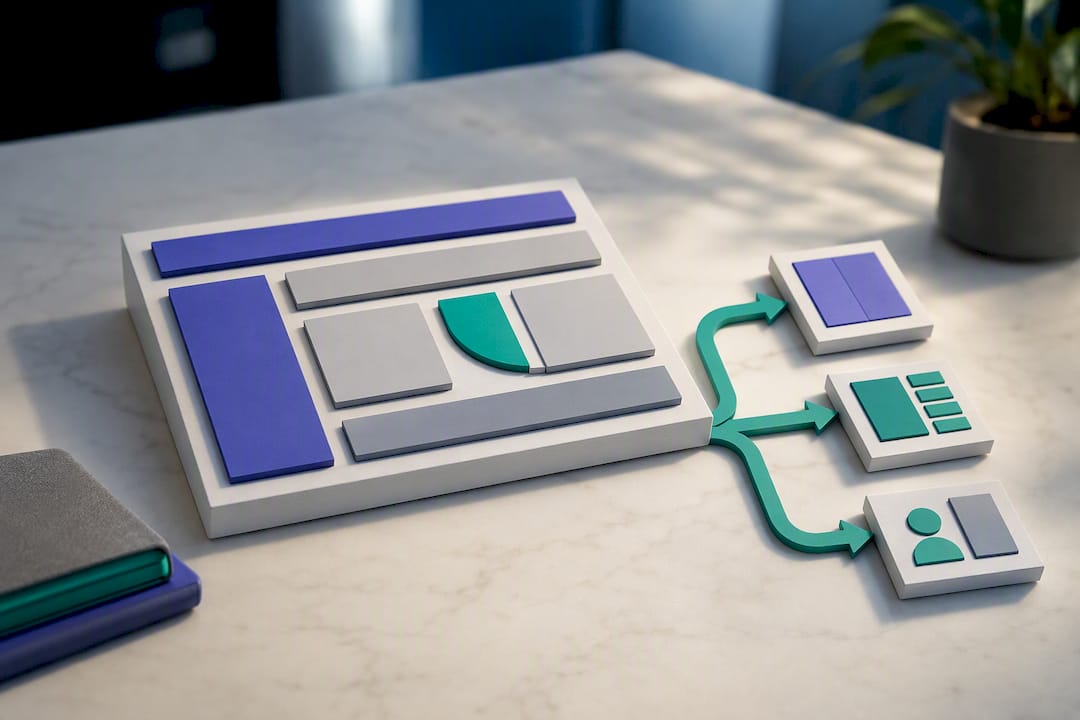
Good collaborative editors extend the same access controls from earlier sections into their real-time layer. A draft should only be visible to people with permission to see it, and edit history should record which account made each change, not just that a change occurred. Without that record, two editors working the same page at once can quietly overwrite each other’s work, and nobody finds out until a client asks why their edit disappeared.
If your team edits the same pages regularly, look for version history and a clear indicator of who’s editing what, right now, before you commit to a tool.
Our Take: Match the Tool to the Job, Not the Other Way Around
Most advice on browser editing skips the part that actually matters: knowing which category of tool you’re reaching for and why. Plenty of guides treat DevTools tricks and full platform editors as points on the same spectrum, just “more” or “less” powerful. They aren’t. One shows you something. The other keeps it.
That confusion causes real damage. Someone spends twenty minutes perfecting a headline in designMode, refreshes the page to check something else, and loses it all. That’s not user error. That’s a tool being used for the wrong job.
Our stronger opinion: the biggest risk in browser editing isn’t a bad edit. It’s a missing publish path. A typo is fixable in thirty seconds. An edit made with no draft state, no role check, and no record of who touched what, that’s the one that turns into a support ticket at 6 p.m. on a Friday.
Prioritize the workflow before the tool. Ask where a change lives after you save it, and who can see it before it’s public. Get that answer first. The editing technique itself is the easy part.
Ready to Edit Your Site Without the Guesswork?
If you’ve been piecing together designMode tricks, browser extensions, and manual file uploads just to keep a site current, that’s the exact gap WebsitePublisher.ai was built to close. Instead of juggling separate tools for mocking up a change and actually publishing it, you get one browser-based editor with a draft state built in, so nothing goes live until you say so.
Freelancers managing multiple client sites, small business owners with no developer on staff, and agencies turning around frequent content changes tend to get the most out of this setup. On the AI website builder page, you can see the visual editor, the AI-assisted prompt workflow, and the full list of built-in integrations before committing to anything. Check current pricing and start building your first draft today.
Sources
The technical claims in this guide rest on a few well-documented standards worth bookmarking. The MDN entry on the Document Object Model explains the structure every browser editor manipulates. The MutationObserver documentation covers how real-time change detection actually works under the hood. For access control specifics, the RBAC implementation guide for collaborative apps is a solid technical starting point. And for a plain explanation of why local edits vanish while server-side commits stick, the Stack Overflow thread on live editing versus persistence is worth the read. If you’re also cleaning up technical SEO issues while you edit, a technical SEO toolkit overview covers the checks worth running before you publish.
FAQ
How Do I Edit an Existing Webpage Directly in My Browser?
For a quick preview, open DevTools, right-click the element, and edit it inline, or run document.designMode = "on" in the console. For a change that needs to stick, use a platform editor with a draft and publish step, like WebsitePublisher.ai.
What Is the Best Way to Edit Website Content Without Losing Changes on Refresh?
Local tools like designMode and DevTools always lose changes on refresh because they only edit the browser’s copy of the page, not the server’s. A persisted editor with a save or publish function is required to keep any edit.
What Software Can I Use to Edit My Website Without Coding?
A browser-based visual editor is the most direct no-code route, letting you click and type changes directly on the page. WebsitePublisher.ai combines this with AI-assisted prompts and draft workflows so non-technical users can edit and publish safely.
Are Browser Extensions Safe for Editing a Live Business Website?
Browser extensions are fine for local previews and mockups, but most don’t include role-based access or an audit trail, which makes them risky for live production edits. Reserve extensions for testing ideas, and use a platform with proper access controls for anything that needs to go live.
Can Multiple People Edit the Same Page at the Same Time?
Yes, if the editor supports real-time change tracking, typically built on an API like MutationObserver, along with role-based permissions that show who changed what. Without those two features, simultaneous edits risk overwriting each other silently.
Recommended
- Build Websites with Claude — Claude AI Website Builder
- AI Website Maker — Make a Website by Talking to AI
- Build Websites with ChatGPT — ChatGPT AI Website Builder
Build your site the same way
Describe what you want. Your AI builds and publishes it — with a real backend behind it.
See how it works →